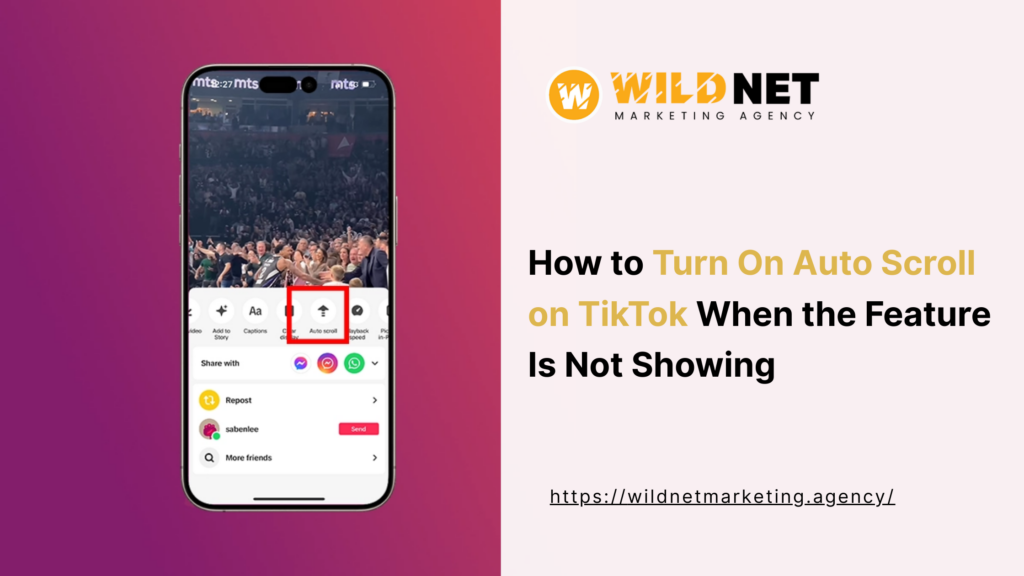
TikTok users are increasingly searching for how to turn on auto scroll on TikTok, especially when they want hands-free scrolling. But many users face the same issue, the auto scroll option simply isn’t showing.
If you’re stuck wondering how to turn on auto scroll on TikTok when the feature is not showing, this guide explains why it happens, what TikTok officially supports, and what actually works today, using the most updated TikTok behavior.
What Is Auto Scroll on TikTok?
Auto scroll on TikTok allows videos to move automatically from one post to the next without manually swiping. This feature is especially useful for:
- Hands-free viewing
- Accessibility needs
- Passive content consumption
- Long watch sessions
While auto scroll TikTok sounds simple, the feature is not fully rolled out to all users yet, which causes confusion.
Why Auto Scroll on TikTok Is Not Showing
Before explaining how to auto scroll on TikTok, it’s important to understand why the option may be missing.
1. Limited Feature Rollout
TikTok releases new features in phases, testing them on selected users before global rollout. This is the main reason TikTok auto scroll does not appear for everyone.
2. Region & Account-Based Availability
Your country, account age, or activity level can affect whether auto scroll on TikTok is enabled.
3. Device & OS Compatibility
Older Android versions and some iOS builds may not yet support TikTok auto scroll.
4. App Cache or Version Issues
Cached data or partial updates can block new features from showing.
How to Turn On Auto Scroll on TikTok (If the Feature Is Available)
If your account supports it, here’s how to turn on auto scroll on TikTok step by step:
- Open the TikTok app
- Go to the For You or Following feed
- Long-press anywhere on the video
- Tap Auto Scroll
- TikTok will now scroll videos automatically
If you don’t see this option, continue below.
How to Turn On Auto Scroll on TikTok When the Feature Is Not Showing
Method 1: Reinstall TikTok (Properly)
A clean reinstall often triggers feature syncing and clears out cached bugs:
- Uninstall TikTok.
- Restart your phone to clear temporary system files.
- Reinstall from the App Store or Play Store.
- Log in again and test auto scroll on TikTok.
Note: This works better than simple updates as it forces the app to fetch the latest server-side configuration for your account.
Method 2: The Long-Press Shortcut (The “Hidden” Manual Way)
Sometimes the feature is there but the icon is missing. Try this:
- Open your For You Page (FYP).
- Long-press (hold your finger down) in the middle of any video.
- Look for a button that says “Auto scroll” in the pop-up menu.
- If it appears here, tap it, and an arrow icon will show up in the top right of your feed.
Method 3: Use Phone Accessibility Auto Scroll (Android)
Many Android devices support system-level scrolling or third-party “Auto Clicker” apps:
- Go to Settings → Accessibility.
- Enable Auto Scroll / Interaction Controls or Voice Access.
- Open TikTok and use the system command to scroll. This method is a reliable workaround when native TikTok auto scroll isn’t available.
Method 4: Try TikTok Accessibility Settings
TikTok sometimes places experimental features under its own accessibility menu:
- Go to Profile → Settings and Privacy → Accessibility.
- Look for “Auto-scroll” or enable gesture/motion-based controls.
- While indirect, this can activate the behavior for some users depending on their region.
Method 5: Join TikTok Beta Program
TikTok beta users often receive features like Auto Scroll weeks before the general public:
- Android: Search for TikTok in the Play Store and scroll down to “Join the Beta.”
- iOS: Requires the TestFlight app (access is often limited and full).
- Many early adopters report seeing TikTok auto scroll here first.
Why is Auto Scroll still missing?
If none of these work, keep these two factors in mind:
- A/B Testing: TikTok rolls out features to random groups of users. You may simply have to wait until your specific account ID is “whitelisted” for the feature.
- Regional Restrictions: Some features are tested in specific countries (like the UK or Canada) before reaching a global audience.
Is It Safe to Use Third-Party Auto Scroll Apps?
Be careful.
- TikTok does not recommend third-party automation apps
- Some require account permissions
- Others violate TikTok’s terms and risk account restrictions
If safety matters, stick to native or accessibility-based auto scroll on TikTok.

Why TikTok Is Intentionally Slow to Release Auto Scroll
Have you ever wondered why a tech giant like TikTok is taking so long to release a “simple” auto-scroll button? Most creators think it’s just a slow rollout, but the real reason is much deeper: It’s a direct threat to the algorithm.
TikTok’s “For You” Page is a precision machine that relies on “Micro-Signals.” When you use Auto Scroll, those signals change, creating three major challenges for the app:
1. The Loss of “Micro-Engagement” Signals
The algorithm doesn’t just watch what you see; it watches how you move.
- The Swipe Speed: A fast swipe tells TikTok “not for me.” A slow, lingering swipe tells TikTok “I’m intrigued.”
- The Pause: Manually stopping a scroll is a high-value signal.
- Auto Scroll Problem: With Auto Scroll, the app loses these physical signals. It can no longer tell if you’re actually watching or if you just left your phone on while you went to the kitchen.
2. Ad Metric Distortion
TikTok makes its money by showing you ads.
- Active Viewers vs. Passive Listeners: Advertisers pay more for “Active Viewers.” If Auto Scroll is on, the “View Through Rate” for ads becomes less accurate.
- The “Ghost” Impression: If the app scrolls past an ad while you aren’t looking, it wastes the advertiser’s money and lowers TikTok’s “Return on Ad Spend” (ROAS).
3. The “Completion Rate” Loophole
The #1 signal for a viral video is the Completion Rate. * In manual mode, if you finish a video, it’s because you chose to stay.
- In Auto Scroll mode, you might finish a video simply because you didn’t feel like reaching for the phone to skip it. This “Lazy Completion” confuses the AI, making it harder for the app to know what you actually love.
The Verdict: TikTok is carefully “gatekeeping” Auto Scroll because they are trying to figure out how to keep their AI smart without your physical swipes to guide it.
Best Practices: How to Use Auto Scroll Without “Breaking” Your Feed
Auto Scroll is a convenience, but using it 100% of the time can make your “For You Page” (FYP) generic. To keep your algorithm sharp, follow these “Active Signal” rules:
- The 5-Video Rule: Every 5–10 videos, perform one manual action (a Like, Share, or Save). This tells the AI you are still paying attention.
- The “Not Interested” Reset: If Auto Scroll starts showing you content you dislike, stop it immediately. Long-press the video and select “Not Interested” to recalibrate the feed.
- Use it for “Background” Content: Auto Scroll is best for educational content, recipes, or “Storytime” videos where the audio is the main focus. For fast-paced comedy or trends, manual scrolling is still superior.
The iPhone “Voice Scroll” Workaround
This method uses Apple’s built-in accessibility tools to “mimic” a finger swipe whenever you say a specific word.
Step 1: Enable Voice Control
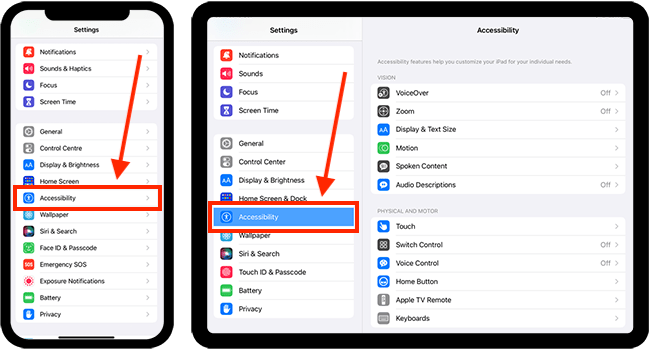
- Open Settings on your iPhone.
- Tap Accessibility.
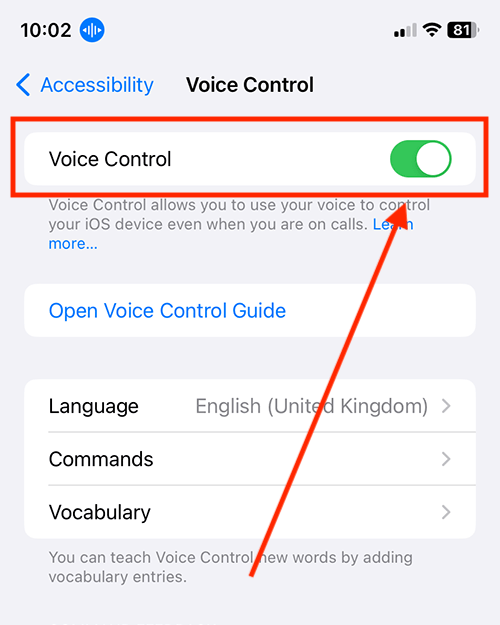
- Tap Voice Control and toggle it ON. (Note: A blue microphone icon will appear in your status bar.)
Step 2: Create the “Next” Command
- In the Voice Control menu, tap Customize Commands.
- Tap Create New Command.
- Under Phrase, type the word you want to use (e.g., “Next” or “Skip“).
- Tap Action → Run Custom Gesture.
Step 3: Record the Swipe
- On the “New Gesture” screen, perform a quick swipe up in the center of the screen, exactly as you would to change a TikTok video.
- Tap Save in the top right.
Step 4: Lock it to TikTok (Optional but Recommended)
- Tap Application at the bottom of the command screen.
- Select TikTok from the list. This ensures your phone doesn’t try to “swipe up” in your email or messages by accident.
- Tap Save one last time.
FAQs: How to Turn On Auto Scroll on TikTok
Q.1 Why is auto scroll not showing on TikTok?
Ans. Because the feature is still in limited rollout and not available to all accounts or region, Also It is currently in a “Global Phased Rollout.” TikTok tests features by account ID and region (primarily US/UK/Canada first).
Q.2 How to auto scroll on TikTok without the feature?
Ans. You can use Android accessibility settings or TikTok beta versions.
Q.3 Is auto scroll on TikTok available on iPhone?
Ans. It’s available to select iOS users only. Many iPhones don’t support it yet.
Q.4 Does TikTok auto scroll work on all videos?
Ans. It mainly works on the For You feed when enabled.
Q.5 Can I force-enable it?
Ans. Not directly, but joining the TikTok Beta or using a VPN to set your location to the US/UK often triggers the server-side update.
Conclusion: The Future of Hands-Free TikTok
If you can’t find the Auto Scroll button today, don’t worry—your app isn’t “broken.” You are likely part of a control group in TikTok’s ongoing A/B testing.
The shift toward Auto Scroll marks TikTok’s evolution from a Social Media app into a Personalized TV station. While we wait for the native button to reach every device, the Accessibility workarounds mentioned in Method 2 and 3 remain the most reliable ways to enjoy a hands-free experience.
Pro Tip: Keep your app updated every Tuesday (TikTok’s typical update cycle) to be the first to see when the feature finally flips “ON” for your account.